Ever logged into Steam only to find a beloved game missing or your hard-earned progress vanished? It is a common frustration for gamers, especially those balancing demanding jobs and family life. This comprehensive guide serves as your ultimate resource for navigating the often-stressful world of Steam game lost and found scenarios. We will delve into practical, step-by-step solutions for recovering missing titles, troubleshooting cloud sync failures, restoring local save files, and even dealing with compromised accounts. For the average gamer, often around 36 years old, who values their limited relaxation time, losing game data is a significant setback. This article provides clear, actionable advice to help you get back to gaming faster and prevent future losses. You will learn about best practices for data management, effective communication with Steam Support, and essential preventative measures. Stop the panic and start recovering your digital treasures today.
My Steam game is gone, how do I get it back?
First, ensure you're logged into the correct Steam account. Then, clear all filters in your Steam Library and use the search bar to locate the game. If it's still missing, restart your Steam client and computer. If purchased, the license is tied to your account, so you can always reinstall it even if uninstalled.
Where are my Steam save files located?
Steam save file locations vary widely by game and developer. Common locations include your 'Documents' folder, 'AppData' (specifically Roaming or Local folders), or within the game's installation directory under SteamApps/common. Websites like PCGamingWiki provide specific save locations for thousands of titles. Steam Cloud syncs these for supported games.
Steam Cloud isn't syncing, what do I do?
First, verify Steam Cloud is enabled for that specific game in its Steam Properties. Check your internet connection and firewall settings. Try disabling Steam Cloud for the game, launching and exiting, then re-enabling it. If conflicts appear, carefully select the most recent save. Clearing Steam's download cache (Settings > Downloads) can also help.
Can I recover a game I accidentally deleted from Steam?
Yes, absolutely! 'Deleting' a game from Steam merely uninstalls it from your computer. Your ownership of the game is permanently tied to your Steam account. Simply find the game in your Steam Library (it will show as 'Not Installed') and click the 'Install' button to re-download and play it again.
My Steam account got hacked, are my games safe?
If your Steam account is hacked, your game licenses are generally safe as they are tied to your account, not your PC. However, the hacker could potentially make purchases or trade items. Immediately attempt to reset your password via Steam's 'Forgot password' link. If unsuccessful, contact Steam Support with proof of ownership (e.g., payment details, CD keys) to regain control. Steam Guard Mobile Authenticator is crucial for prevention.
What should I do immediately if a Steam game disappears?
If a Steam game disappears, first check your library filters, search for the game directly, and confirm you are logged into the correct Steam account. Restart your Steam client and computer. If it was installed, verify game files through the game's properties. These quick checks often resolve the issue without needing deeper troubleshooting.
How can I re-download games I've previously owned on Steam?
Re-downloading previously owned games on Steam is straightforward. Simply log into your Steam client, navigate to your 'Library', locate the game you wish to re-download (it will typically show as 'Not Installed'), and click the 'Install' button. Steam will then download and install the game on your current computer.
Is there a way to restore old Steam save files from a backup?
Yes, if you have previously backed up your local save files to an external drive or cloud storage, you can restore them. Locate the game's specific save folder on your PC, then copy your backed-up save files into that directory, overwriting any current (or missing) ones. This is crucial for games without robust Steam Cloud support.
Why do some games not use Steam Cloud for saves?
Some games do not use Steam Cloud for saves because it is an optional feature for developers. They might use their own proprietary cloud saving system, or they might simply choose not to implement any cloud saving functionality, relying solely on local files. Always check a game's store page for Steam Cloud support.
What's the difference between uninstalling and deleting a game on Steam?
Uninstalling a game on Steam removes its local files from your computer, freeing up disk space, but you still own the game. 'Deleting' a game, in the context of Steam, usually refers to permanently removing it from your account (a rare, irreversible action requiring Steam Support). Most users only ever uninstall games.
Can I recover games if my hard drive failed?
If your hard drive failed, your Steam game licenses are still secure and tied to your account. You can reinstall Steam on a new drive and redownload all your owned games. However, local save files on the failed drive are likely lost unless they were backed up to Steam Cloud or another external source.
How often should I back up my critical game data?
For critical game data, especially for titles without Steam Cloud support, it is highly recommended to back up your save files frequently. Aim for a backup after every significant play session or at least weekly. Regular backups to an external drive or cloud service provide peace of mind against data loss.
Logging into Steam after a long day, ready to unwind with your favorite digital adventure, only to find a game missing from your library or, even worse, your progress gone. It is a moment many of us, especially those juggling jobs, families, and life's endless demands, have unfortunately experienced. For the average US gamer, roughly 36 years old, who dedicates over 10 hours a week to their passion, losing a game or its precious save data is not just an inconvenience; it is a loss of relaxation, skill-building, and social connection. With 87 percent of US gamers regularly engaging with their platforms, ensuring their game libraries and progress are secure is paramount. This guide is your trusted friend, here to help you navigate the confusing world of 'steam game lost and found', offering practical, no-nonsense solutions to get you back in the game.
We understand that your gaming time is valuable, and you do not have endless hours to troubleshoot. That is why we have compiled the most effective strategies for recovering lost Steam games and save files, focusing on solutions that respect your time and budget. From simple verification steps to advanced recovery techniques, we will cover everything you need to know to protect your digital investments and ensure your gaming experience remains smooth and stress-free. Let us dive in and tackle those 'steam game lost and found' mysteries together.
What Causes Steam Games or Save Files to Disappear?
The disappearance of a Steam game or save file can stem from various sources, making it a frustrating puzzle to solve. Often, it is a simple display filter or an accidental uninstall. Less frequently, it can be due to corrupted game files, a failing hard drive, or even a glitch in Steam's client or cloud synchronization service. For gamers who prioritize a smooth experience, understanding these root causes is the first step toward effective troubleshooting and prevention. Considering the busy lives of most adult gamers, identifying the problem quickly is key to minimizing downtime.
How Do I Find a Missing Game in My Steam Library?
Before panicking about a truly 'lost' game, let us check the basics. Many times, a game is not gone, just hidden or filtered. First, ensure you are logged into the correct Steam account. Then, in your Steam Library, check the 'Games' filter to make sure 'Installed' or 'Ready to Play' is not selected if you expect to see all your titles. Clear all filters. Also, verify that the 'Hidden' category is not hiding your game. Sometimes, an unintentional click can send a game there. Finally, use the search bar within your library directly. These simple checks resolve the majority of 'steam game lost and found' incidents for many users.
If the game still does not appear, try changing your Steam download region in Steam > Settings > Downloads. Although rare, sometimes regional server issues can cause display discrepancies. Restarting your Steam client and even your computer can often clear temporary glitches that prevent your library from loading correctly. Remember, a fresh start often fixes unexpected software behavior.
What Are the Steps to Recover Deleted Local Save Files?
Accidentally deleting local save files can feel like a punch to the gut, especially after investing dozens of hours into a single-player epic. The good news is that recovery might be possible. First, check your Recycle Bin or Trash folder; if you deleted them recently, they might still be there. If not, the Windows 'Previous Versions' feature (or Time Machine on macOS) can be a lifesaver if you have System Restore enabled. Navigate to the folder where your game saves are typically stored (often within Documents, AppData, or the game's installation directory), right-click, and select 'Restore previous versions'.
For more advanced situations, data recovery software can sometimes retrieve files from your hard drive even after they have been emptied from the Recycle Bin. Tools like Recuva or EaseUS Data Recovery Wizard scan your drive for recoverable data. Act quickly, as continued use of your PC can overwrite the deleted data, making recovery impossible. Always install such software to a different drive than the one you are trying to recover from to prevent overwriting.
How Can I Troubleshoot Steam Cloud Sync Issues for My Progress?
Steam Cloud is a fantastic feature, keeping your saves synchronized across devices, but it can sometimes falter, leading to 'lost' progress. If your saves are not syncing, first verify that Steam Cloud is enabled for the specific game. Right-click the game in your library, go to 'Properties', and check the 'Updates' or 'General' tab for the Cloud Sync option. If it is enabled, try forcing a re-sync by disabling it, launching the game, exiting, and then re-enabling it. This often prompts Steam to reconcile local and cloud data.
A common issue arises when Steam detects a conflict between local and cloud saves. It will usually present a dialogue box asking which version to keep. Always be careful to select the most recent or correct save. If you encounter persistent issues, check your internet connection and ensure your firewall is not blocking Steam's access to its cloud servers. Sometimes, clearing Steam's download cache (Steam > Settings > Downloads > Clear Download Cache) can resolve underlying sync problems by forcing a fresh re-evaluation of all files.
What If My Steam Account or Games Are Stolen or Compromised?
Account security is paramount in 2026, especially with increased phishing attempts targeting digital assets. If you suspect your Steam account has been stolen or compromised, immediate action is critical. First, try to reset your password via the Steam website's 'Forgot your password?' option. If you cannot access your account, navigate to the Steam Support page. You will need to provide proof of ownership, such as credit card details used for purchases, CD keys, or payment account information. Steam Support is generally very effective at restoring accounts once ownership is verified, typically within 24-48 hours. Remember, never share your login credentials, and always use Steam Guard Mobile Authenticator for two-factor authentication; it is your strongest defense.
When Should I Contact Steam Support for Lost Games?
While many 'steam game lost and found' issues can be resolved with self-help, there are definite times when Steam Support is your best and only option. You should contact them if:
- A game you legitimately purchased is no longer in your library, and basic troubleshooting (filters, re-logging) has failed.
- Your account has been compromised or stolen, and you cannot regain access through password reset.
- You are consistently experiencing Steam Cloud sync failures that are preventing you from playing or saving progress, and local fixes do not work.
- You have accidentally refunded a game or made a purchase error that needs correction.
- There are persistent installation or download issues that point to a platform-level problem rather than a local one.
When contacting support, provide as much detail as possible: transaction IDs, screenshots, specific error messages, and a clear description of the problem. This helps them diagnose and resolve your issue much faster, getting you back to gaming without unnecessary delays.
How Can I Prevent Losing My Steam Games and Save Data in the Future?
Prevention is always better than cure, especially when it comes to precious gaming data. Here are key strategies to safeguard your Steam library and save files:
- Enable Steam Guard Mobile Authenticator: This free two-factor authentication provides an extra layer of security against unauthorized access to your account.
- Regularly Backup Save Files: While Steam Cloud is convenient, it is not foolproof. Identify where your games store local saves (PCGamingWiki is a great resource) and regularly back up these folders to an external drive or cloud storage service like Google Drive or Dropbox.
- Verify Game Files: If a game seems to be missing content or behaving strangely, right-click the game in Steam, go to 'Properties' > 'Installed Files' > 'Verify integrity of game files'. This fixes many issues by replacing corrupt or missing files.
- Understand Steam Cloud Behavior: Be aware that not all games support Steam Cloud. Check the game's store page for the 'Steam Cloud' icon. For games that do not, manual backups are essential.
- Maintain System Health: Keep your operating system and drivers updated. Perform regular disk checks and defragmentation (for HDDs) to prevent data corruption.
- Be Wary of Phishing: Never click suspicious links or enter your Steam credentials on unfamiliar websites. Steam will never ask for your password via email or a third-party site.
By adopting these practices, you significantly reduce the risk of encountering a 'steam game lost and found' situation. For the busy gamer who values efficiency, these steps are a small investment of time for massive peace of mind.
Are There Third-Party Tools to Help Recover Game Data?
Yes, several third-party tools can assist in game data recovery, though their effectiveness depends on the situation. Data recovery software like Recuva, EaseUS Data Recovery Wizard, or Stellar Data Recovery can scan your hard drive for deleted files. These are particularly useful if you have accidentally deleted local save files and they are no longer in your Recycle Bin. However, their success rate decreases significantly the longer the data has been deleted and the more you have used your drive, as new data can overwrite the old.
For backing up save files, tools like GameSave Manager allow you to easily identify, backup, and restore game saves across multiple titles, even migrating them between different PC setups. These tools can be invaluable for gamers who want a more robust backup solution beyond what Steam Cloud offers. Always download such software from reputable sources to avoid malware.
Can I Recover Games if I Reformatted My PC or Installed a New OS?
If you have reformatted your PC or installed a new operating system, recovering 'lost' Steam games themselves is straightforward. All your purchased games are tied to your Steam account. Simply log back into your Steam client on the newly formatted PC, and your entire library will be available for re-download. Your game licenses are perpetual, linked to your account, not your specific PC installation. The challenge, however, lies in recovering local save files that were not backed up to Steam Cloud or an external drive.
Without a prior backup, local save files on the reformatted drive are generally unrecoverable through standard means. Data recovery software might have a slim chance, but reformatting typically performs a deep wipe, making it much harder. This highlights the critical importance of backing up those individual save game folders or relying on Steam Cloud for all supported titles before any major system changes.
What About 'Family Sharing' Games That Go Missing?
Steam Family Sharing allows you to share your game library with trusted family members or friends. If a shared game appears 'lost', the first step is to check if the owner of the game is currently playing any title from their library. When the owner is playing any game, their library becomes unavailable to shared users. Also, ensure the sharing settings are still active and that your account is still authorized to access their library. Sometimes, family sharing can be revoked or reconfigured by the owner, leading to games disappearing from your accessible list. Communication with the library owner is key here to resolve any discrepancies.
How Do I Verify Game Files to Fix Missing Content?
Verifying game files is a powerful first-line defense against many issues, including missing content, crashes, or inexplicable behavior. To do this, open your Steam Library, right-click on the game that is causing trouble, and select 'Properties'. In the properties window, navigate to the 'Installed Files' tab. Here, you will find a button labeled 'Verify integrity of game files...'. Click this button, and Steam will scan all the game's installed files against its server's manifest. If any files are missing, corrupted, or have been modified, Steam will automatically download and replace them. This process can take a few minutes depending on the game's size and your internet speed, but it often resolves many common 'steam game lost and found' related issues that are actually file integrity problems.
What Are the Best Practices for Backing Up Steam Games?
While Steam's re-download feature is convenient, for larger games or those with slow internet connections, having a local backup is invaluable. Steam offers a built-in backup and restore function: Go to 'Steam' > 'Backup and Restore Games...' in the client menu. You can select installed games to back up to a specific folder or external drive. This creates an installer package that can be used later to quickly reinstall the game without downloading it again. However, this method only backs up the game installation files, not your individual save files.
For save files, the best practice involves manually backing up the specific folders where games store their saves. These locations vary widely but are often found in 'Documents', 'AppData' (Roamining, Local, LocalLow), or within the game's Steam installation folder. Resources like PCGamingWiki provide detailed save game locations for thousands of titles. Regularly copying these folders to an external hard drive, USB stick, or a cloud storage service (like Google Drive or OneDrive) ensures your progress is safe. Automate this process if possible using synchronization software for ultimate peace of mind. Given that many gamers spend upwards of 10 hours a week, safeguarding this investment is a smart move.
As we navigate the increasingly complex digital landscape of 2026, where gaming is a crucial outlet for stress relief and social connection for millions of US adults, knowing how to protect your 'steam game lost and found' assets is essential. From understanding Steam Cloud to implementing robust backup strategies, these insights empower you to game with confidence.
Conclusion:
Losing a game or its progress can be a major headache, especially for busy gamers who value their precious free time. By understanding the common causes, knowing how to troubleshoot your Steam library and cloud saves, implementing smart backup strategies, and knowing when to reach out to Steam Support, you can effectively resolve and prevent most 'steam game lost and found' scenarios. Remember, a little prevention goes a long way in safeguarding your digital adventures. Keep your accounts secure, back up your saves, and game on!
What's your biggest gaming challenge when it comes to managing your library? Comment below and share your tips!
FAQ Section
What is the most common reason for a Steam game disappearing from my library?
The most common reason is often a filter applied in your Steam library or simply being logged into the wrong account. Always clear your library filters and double-check your account before assuming a game is truly gone. Accidental uninstallation is another frequent cause, making the game appear missing but still owned.
How can I verify if a game I own actually supports Steam Cloud saves?
To check if a specific game supports Steam Cloud, navigate to its store page on Steam. Look for the 'Steam Cloud' icon or text listed under the 'Features' section on the right-hand side. Alternatively, right-click the game in your library, select 'Properties', and look for a 'Steam Cloud' checkbox under the 'General' or 'Updates' tab.
Is it possible to recover a Steam game after uninstalling it?
Absolutely. Uninstalling a game only removes its local files from your computer. The game license remains tied to your Steam account. To 'recover' it, simply find the game in your Steam Library and click 'Install'. It will download and install again as long as you own it.
What if my internet connection is unstable, can it cause Steam Cloud issues?
Yes, an unstable or intermittent internet connection can frequently cause Steam Cloud synchronization failures. If Steam cannot establish a consistent connection to its cloud servers, it may struggle to upload or download your latest save data, leading to conflicts or outdated saves. Ensure a stable connection when launching and exiting games to allow proper sync.
Can I transfer my Steam games and saves to a new computer?
Yes, you can transfer your Steam games to a new computer by copying the game folders directly from your old SteamApps/common directory to the new one, then using Steam's 'Add Game' feature to 'Install' and 'Locate existing game files'. For saves, if Steam Cloud is enabled, they will sync automatically. Otherwise, you must manually copy the save game folders from the old PC to the new one.
How often should I backup my critical game data, especially for non-Steam Cloud games?
For games that do not support Steam Cloud, or for any critical save data you absolutely cannot lose, it is recommended to back up your save files regularly, ideally after every major play session or significant progress milestone. A weekly backup schedule to an external drive or cloud service is a good general practice for busy gamers.
Steam game recovery, lost save files, cloud sync issues, account security, prevent data loss, Steam troubleshooting, backup strategies, contacting Steam Support, missing library games, game data restoration
35



Lost And Found Co On Steam Capsule 616x353 . Lost And Found Co Llegar A Steam El 11 De Febrero De 2026 Kopodo . Top Rated Steam Games Of 2026 200xr300 . Lost Found Simulator Steambase Header . Lost And Found Co IGN Untitled 1



Steam Community Lost And Found . Lost And Found Co Steam News Hub Capsule 616x353 . Lost And Found Co On Steam Ss . Lost And Found Co Pre Release Demo Playtest On Steam Deck YouTube . Lost And Found Co On Steam Header
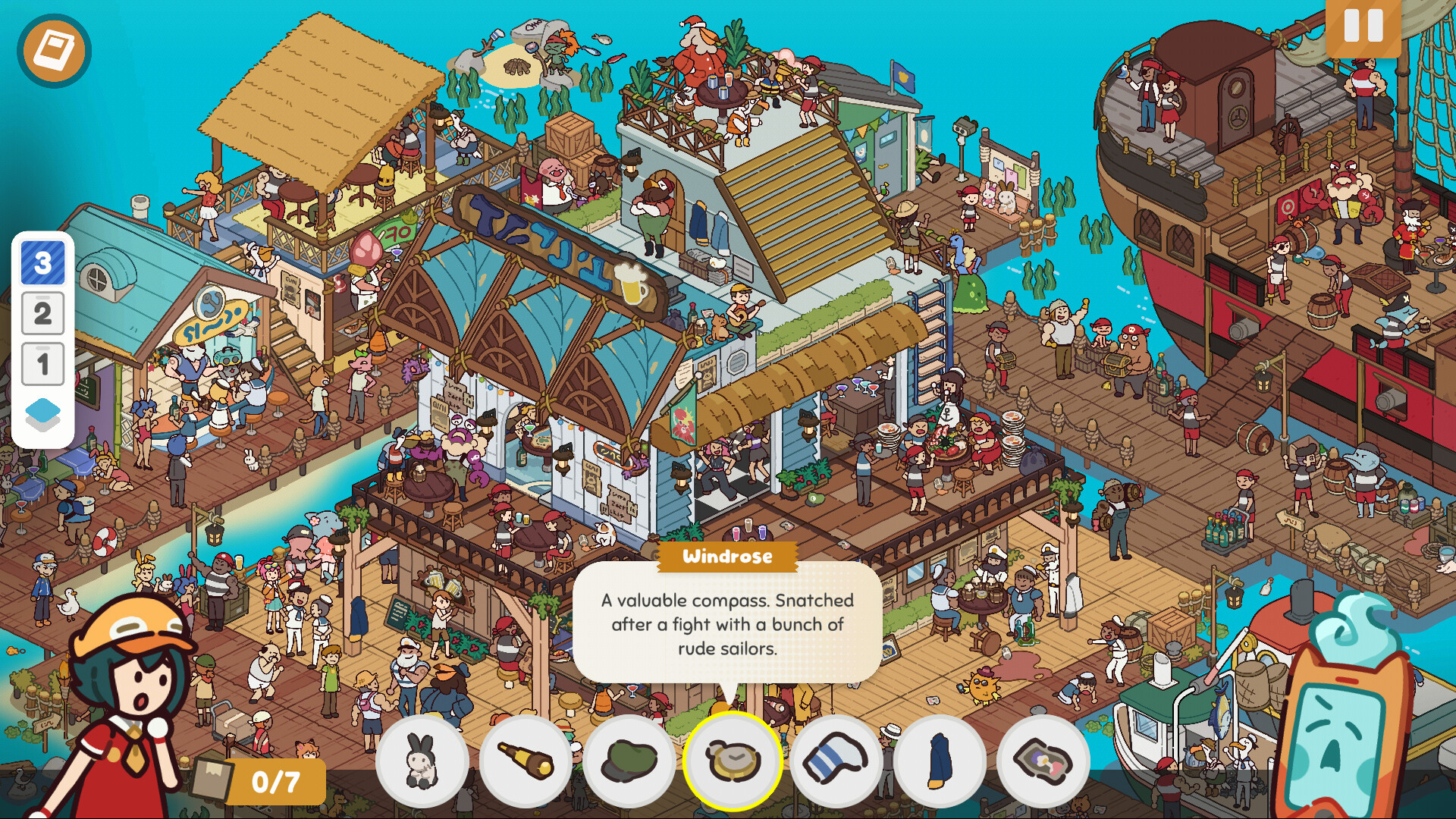



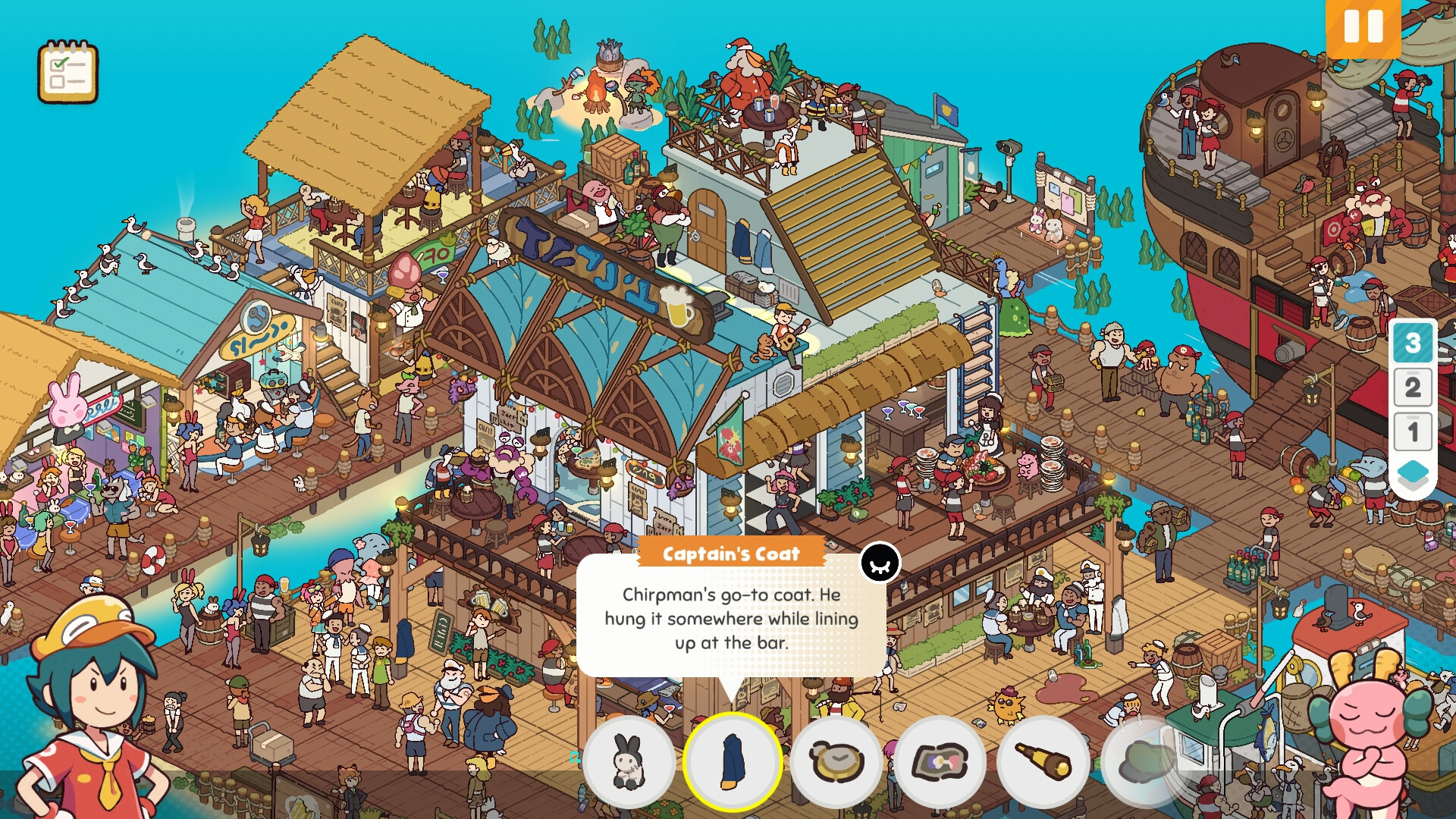
Lost And Found Co On Steam Ss . Steam Community Lost And Found Co . Let S Play A Cozy New Puzzle Game Lost And Found Co On Steam Demo . Neon Lights . Lost And Found Co On Steam Ss
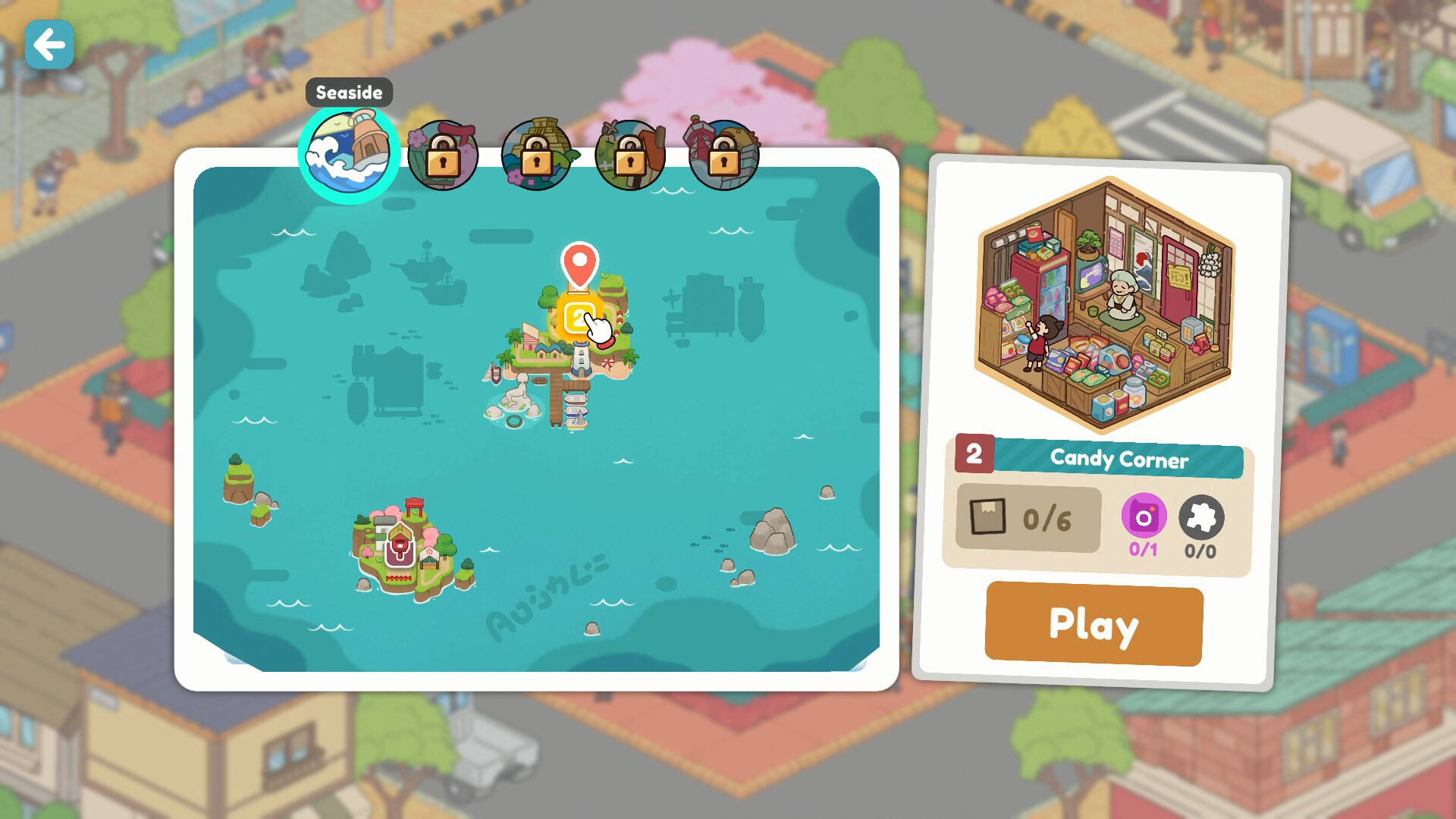

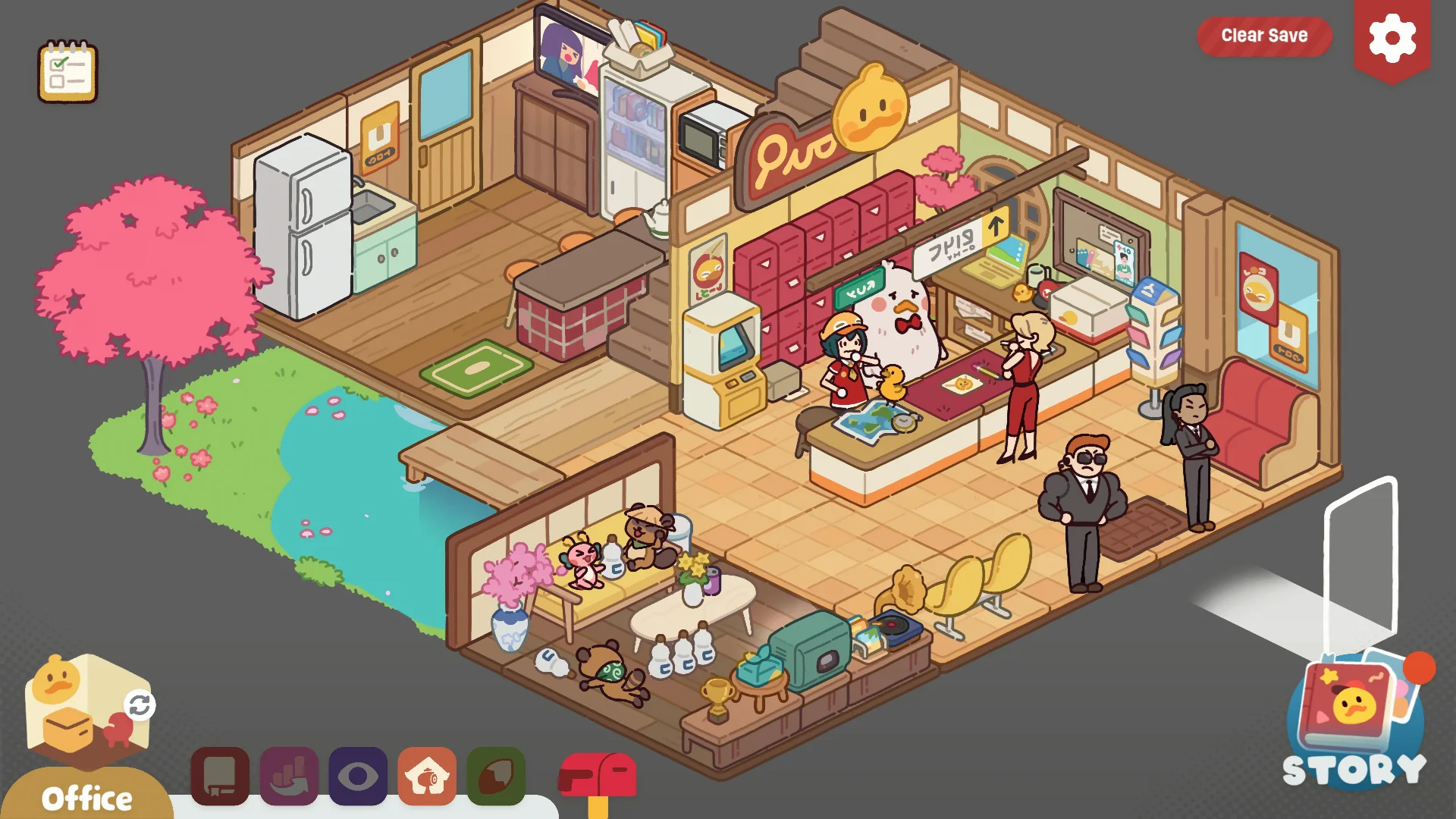


Lost And Found Co On Steam Ss . Lost And Found Co On Steam Ss . Lost And Found Co Confirma Su Lanzamiento Para El 11 De Febrero De LostnFound Inside Office.webp. Game Lost And Found Co Hadir Di Steam Usai Delay Lost And Found Co.webp. Lost And Found Co On Steam Ss


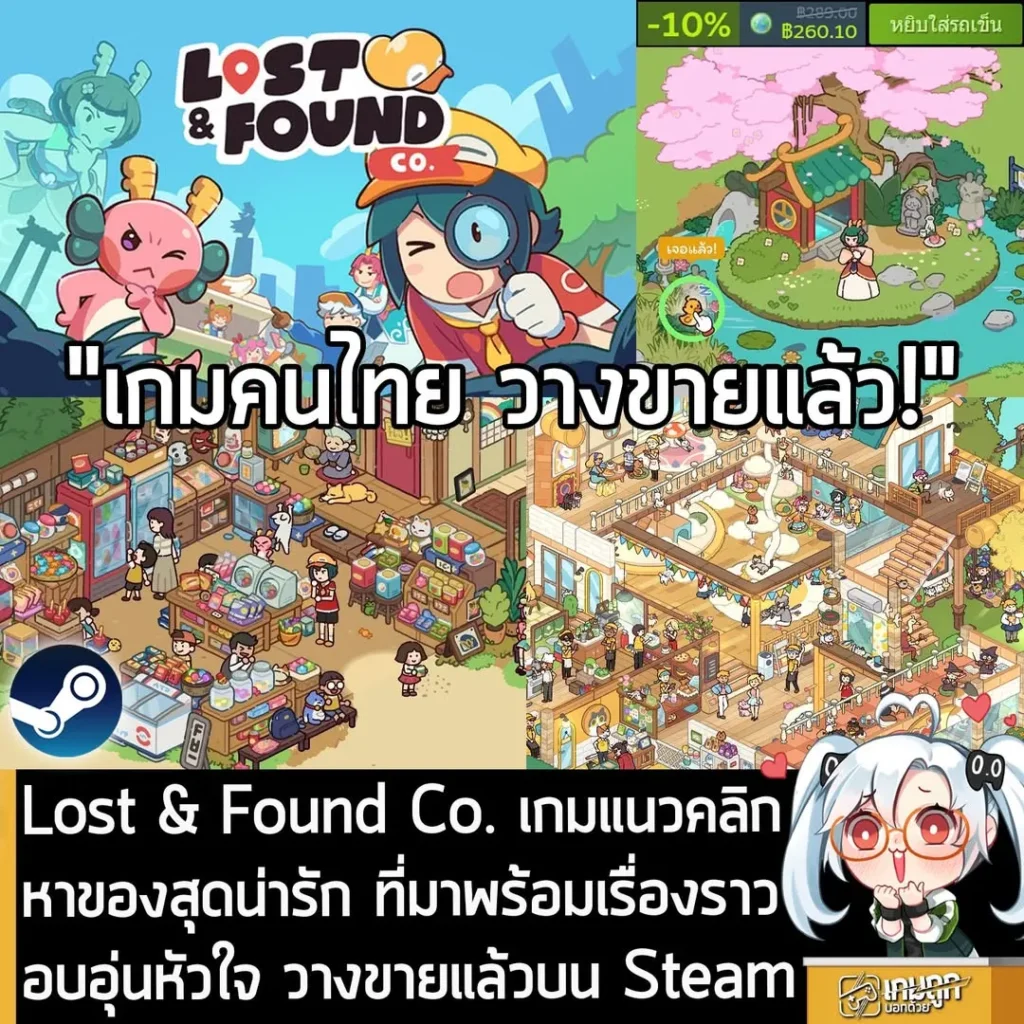


Lost And Found Co Release Date Trailer Pressakey Com Lost And Found Co 301873 . Lost And Found Co PC Steam CD Key Buy Cheap On Kinguin Net . Lost Found Co 646587425 N 1. Lost And Found Co Launch Trailer Pressakey Com Lost And Found Co 301871 . Lost Found Collection Steam Charts Steambase Header


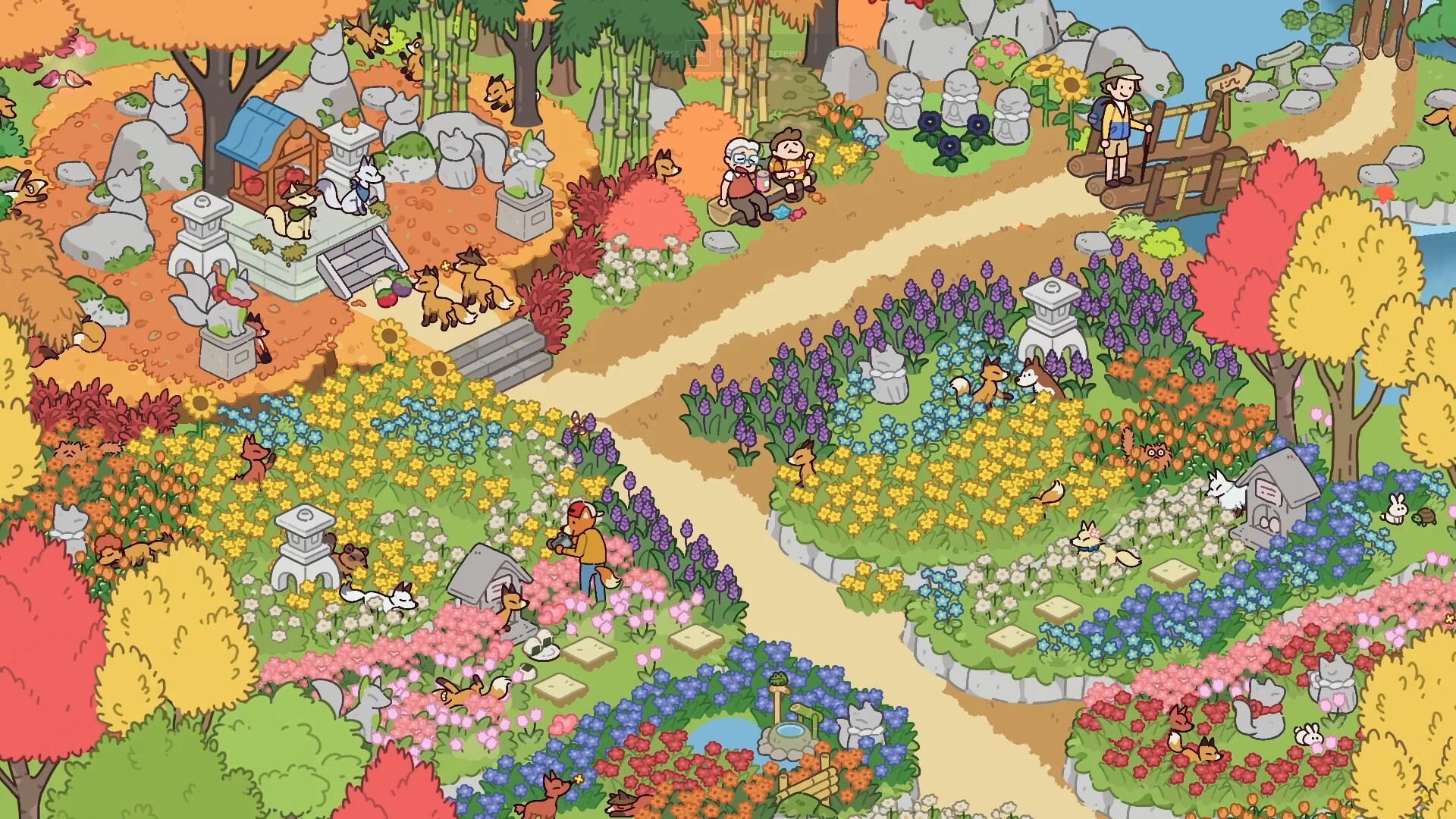


Lost And Found Co Review Gamer Social Club Lost And Found 7 1024x577 . Lost And Found Co Is Coming To Steam On March 6th TGG The Cozy Hidden Object Adventure Lost And Found Co Is Coming To Steam On March 6th Header 300x157 . Buy Lost And Found Co PC Steam Lost And Found Co Pc Steam 2 . Lost And Found Co On Steam Ss . Lost And Found Co On Steam Most Anticipated Game

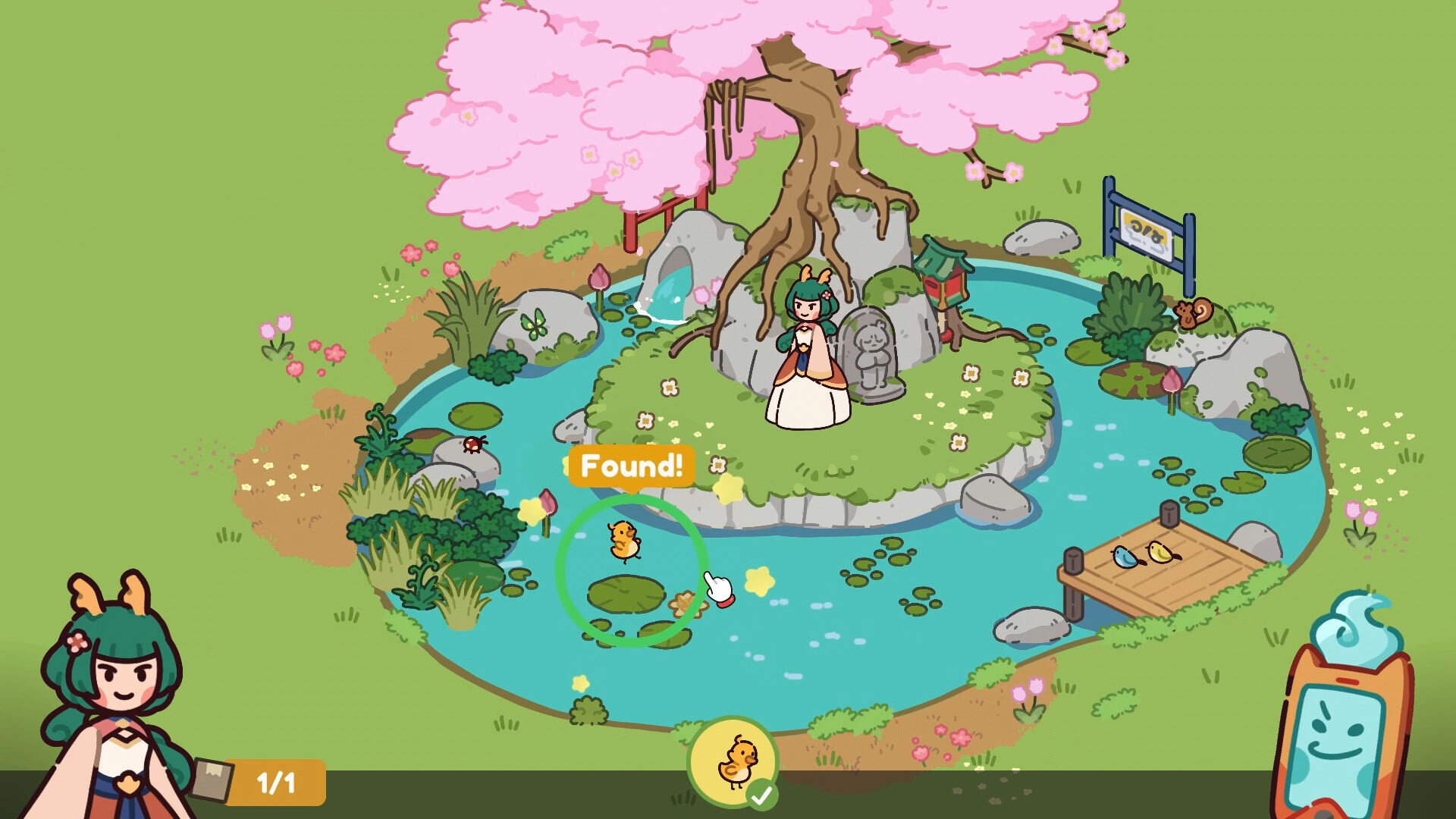


Lost And Found On Steam Ss . Lost And Found Demo On Steam Header . Lost And Found Co On Steam Ss . Lost And Found Co 2026 Jeu Vid O Lost And Found Co . Lost And Found Co PC Steam CD Key Buy Cheap On Kinguin Net